


As a supplier of foldable keyboards, I often receive inquiries from customers about how to pair these innovative devices with their various gadgets. In this blog post, I'll walk you through the step - by - step process of pairing a foldable keyboard with your device, whether it's a smartphone, tablet, or laptop.
Understanding Foldable Keyboards
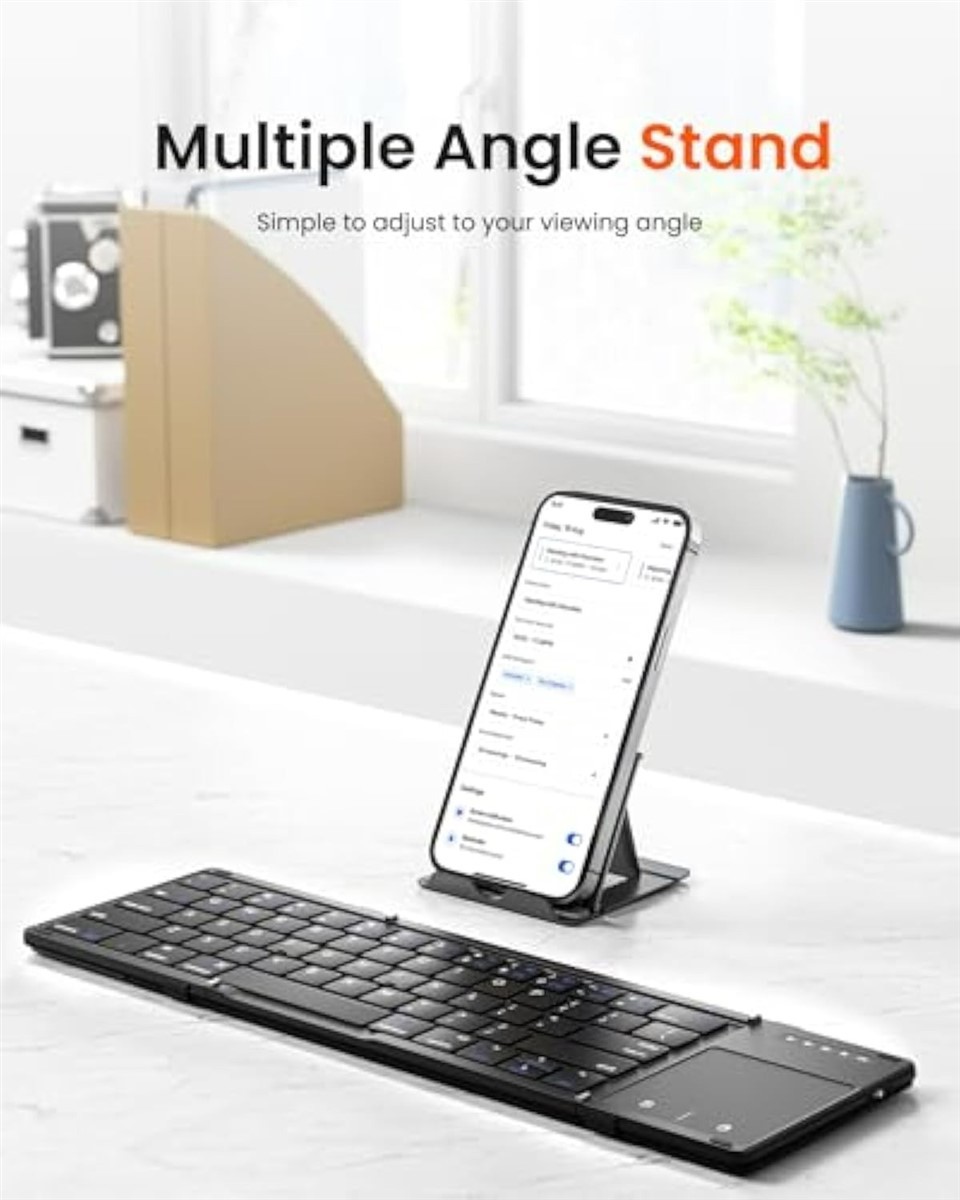
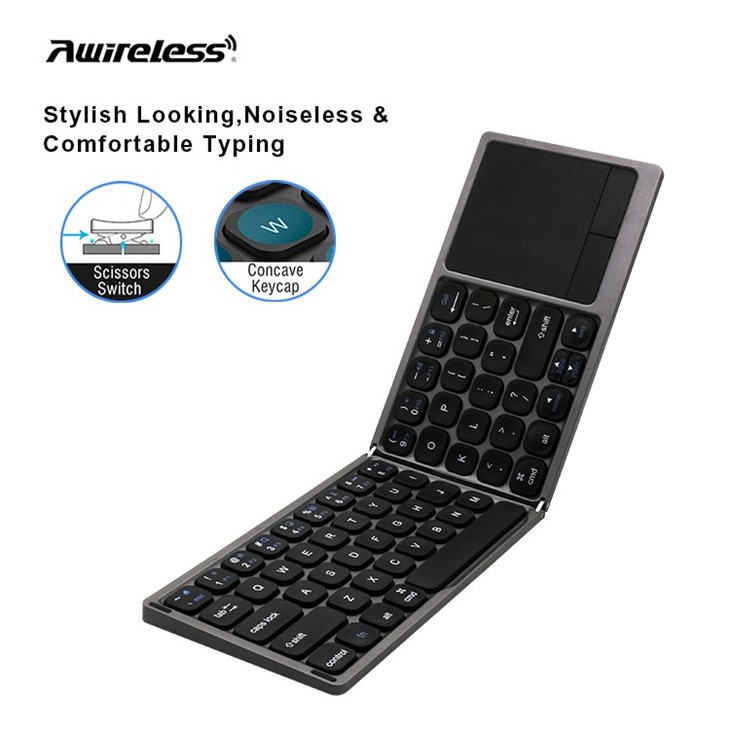
Before we dive into the pairing process, let's briefly understand what foldable keyboards are. Foldable keyboards are a revolutionary invention that combines portability with functionality. They are designed to be easily folded and carried around, making them ideal for people on the go. Our company offers a range of foldable keyboards, including the Folding Wireless Keyboard, Foldable Wireless Bluetooth Keyboard with Touchpad, and Bluetooth Foldable Keyboard with Touchpad. These keyboards use advanced wireless technology, mainly Bluetooth, to connect to your devices.
Pre - pairing Preparations
- Charge the Keyboard: First and foremost, make sure your foldable keyboard is fully charged. Most foldable keyboards come with a built - in rechargeable battery. You can use the provided USB cable to connect the keyboard to a power source, such as a laptop, power bank, or wall charger. A fully charged keyboard ensures a stable connection and long - term use.
- Turn on Bluetooth on Your Device: For smartphones and tablets, go to the settings menu and look for the "Bluetooth" option. Toggle the switch to turn on Bluetooth. On a laptop, you can usually find the Bluetooth settings in the control panel or system tray. Make sure your device's Bluetooth is set to "visible" or "discoverable" so that it can detect the keyboard.
Pairing a Foldable Keyboard with Different Devices
Pairing with Smartphones
- Power on the Keyboard: Unfold your foldable keyboard and press the power button. The keyboard will enter pairing mode, usually indicated by a blinking LED light.
- Search for Devices: On your smartphone, open the Bluetooth settings. Your phone will start scanning for available Bluetooth devices. Look for the name of your foldable keyboard in the list of detected devices. The name is usually printed on the keyboard or in the user manual.
- Connect: Once you find the keyboard, tap on its name to start the pairing process. Your phone may prompt you to enter a passcode. Some foldable keyboards use a default passcode like "0000" or "1234". Enter the correct passcode and click "Connect". After a few seconds, your phone will establish a connection with the keyboard, and you can start typing.
Pairing with Tablets
The process of pairing a foldable keyboard with a tablet is very similar to that of a smartphone.
- Activate the Keyboard: Turn on the foldable keyboard and put it in pairing mode.
- Scan for Devices: Open the Bluetooth settings on your tablet. Wait for the tablet to detect the keyboard.
- Complete the Pairing: Select the keyboard from the list and enter the passcode if required. Once paired, you can use the keyboard to type emails, take notes, or browse the web on your tablet.
Pairing with Laptops
- Enable Keyboard Pairing: Power on the foldable keyboard and set it to pairing mode.
- Access Laptop Bluetooth Settings: On your laptop, open the Bluetooth settings. Click on the "Add a device" or "Pair new device" option.
- Find and Connect: Your laptop will search for nearby Bluetooth devices. Locate your foldable keyboard in the list and click "Pair". Enter the passcode if necessary. After successful pairing, you can use the foldable keyboard as your primary input device.
Troubleshooting
Sometimes, you may encounter issues during the pairing process. Here are some common problems and solutions:
- Device Not Found: If your device cannot detect the foldable keyboard, make sure the keyboard is in pairing mode and that your device's Bluetooth is working properly. You can try restarting both the keyboard and the device and then attempt the pairing process again.
- Connection Drops: If the connection between the keyboard and your device drops frequently, check the battery level of the keyboard. A low - battery keyboard may cause unstable connections. Also, make sure there are no other Bluetooth devices interfering with the connection.
- Passcode Issues: If you enter the wrong passcode multiple times, the pairing may fail. Refer to the user manual to find the correct passcode for your foldable keyboard.
Benefits of Using a Foldable Keyboard
Using a foldable keyboard offers several advantages. Firstly, it enhances your typing experience. The full - sized keys on a foldable keyboard provide a more comfortable and efficient typing experience compared to the on - screen keyboards of smartphones and tablets. Secondly, it increases productivity. You can type faster and more accurately, which is especially useful for writing long documents, emails, or code. Thirdly, the portability of foldable keyboards makes them a great companion for travelers and mobile workers. You can easily carry it in your backpack or pocket and use it wherever you need to type.
Why Choose Our Foldable Keyboards
Our foldable keyboards are designed with high - quality materials and advanced technology. They are not only stylish but also durable. The touchpad on some of our models provides additional functionality, allowing you to navigate your device without a separate mouse. Moreover, our keyboards are compatible with a wide range of devices, including iOS, Android, Windows, and macOS.
Contact Us for Purchase and Negotiation
If you are interested in our foldable keyboards, we welcome you to contact us for purchase and negotiation. Whether you are an individual user looking for a convenient typing solution or a business in need of bulk orders, we can offer you the best products and services. Our team is ready to answer all your questions and provide you with detailed product information.
References
- Manufacturer's user manuals for foldable keyboards
- General Bluetooth technology guides and resources


