


Changing the keyboard input method can be a game - changer, whether you're a casual typist or a professional who spends hours in front of the screen. As a keyboard supplier, I've seen firsthand how the right input method and keyboard can significantly enhance your typing experience. So, let's dive into how you can change the keyboard input method and why it matters.
Why Change the Keyboard Input Method?
There are several solid reasons to switch up your keyboard input method. Maybe you're learning a new language and need to type characters that aren't available in your current setup. For example, if you're learning Japanese, you'll want to switch to an input method that can handle Hiragana, Katakana, and Kanji.
Another reason could be to boost your productivity. Some input methods are designed to be more efficient, allowing you to type faster with fewer keystrokes. For instance, if you're a writer or a data entry operator, using a method that supports text expansion can save you a ton of time.
Changing the Input Method on Different Operating Systems
Windows
Windows makes it pretty easy to change the keyboard input method. First, click on the language icon in the system tray, usually located at the bottom - right of your screen. It'll show a list of available input methods. If the one you want isn't there, go to "Settings" > "Time & Language" > "Language". Under "Preferred languages", select the language you want to use. Then, click on "Options", and here you can add an input method.
Once you've added it, you can switch between input methods by pressing the Windows key + Spacebar. This shortcut makes it super quick to toggle between different languages and input styles.
macOS
On a Mac, it's also straightforward. Click on the language menu in the menu bar at the top of the screen. If the input method you want isn't listed, go to "System Preferences" > "Keyboard" > "Input Sources". Click the plus sign (+) to add a new input method. You can search for the language or type of input method you need.
To switch between input methods, you can use the shortcut Control + Spacebar. It's a handy way to quickly switch when you're in the middle of typing.
Linux
Linux distributions vary, but generally, you can access the input method settings through the system settings. For example, in Ubuntu, go to "Settings" > "Region & Language". Under "Input Sources", click the plus sign to add a new input method.
The shortcut to switch input methods can be set in the "Keyboard Shortcuts" section of the settings. You can choose a combination that's easy for you to remember.
Choosing the Right Keyboard for Your Input Method
As a keyboard supplier, I know that the right keyboard can make a big difference in how well you can use different input methods. For example, if you're using an input method that requires a lot of special characters, a full - sized keyboard with a dedicated number pad can be very useful.
We offer a range of keyboards that are suitable for various input methods, including the wireless ergonomic keyboard. This keyboard is not only wireless, which gives you more freedom of movement, but it's also ergonomically designed to reduce strain on your hands and wrists during long typing sessions.
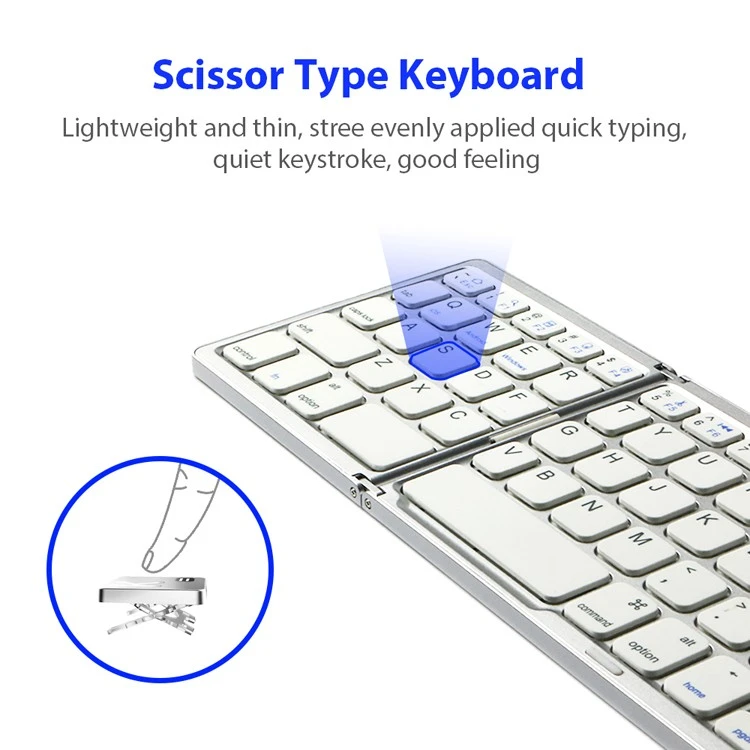
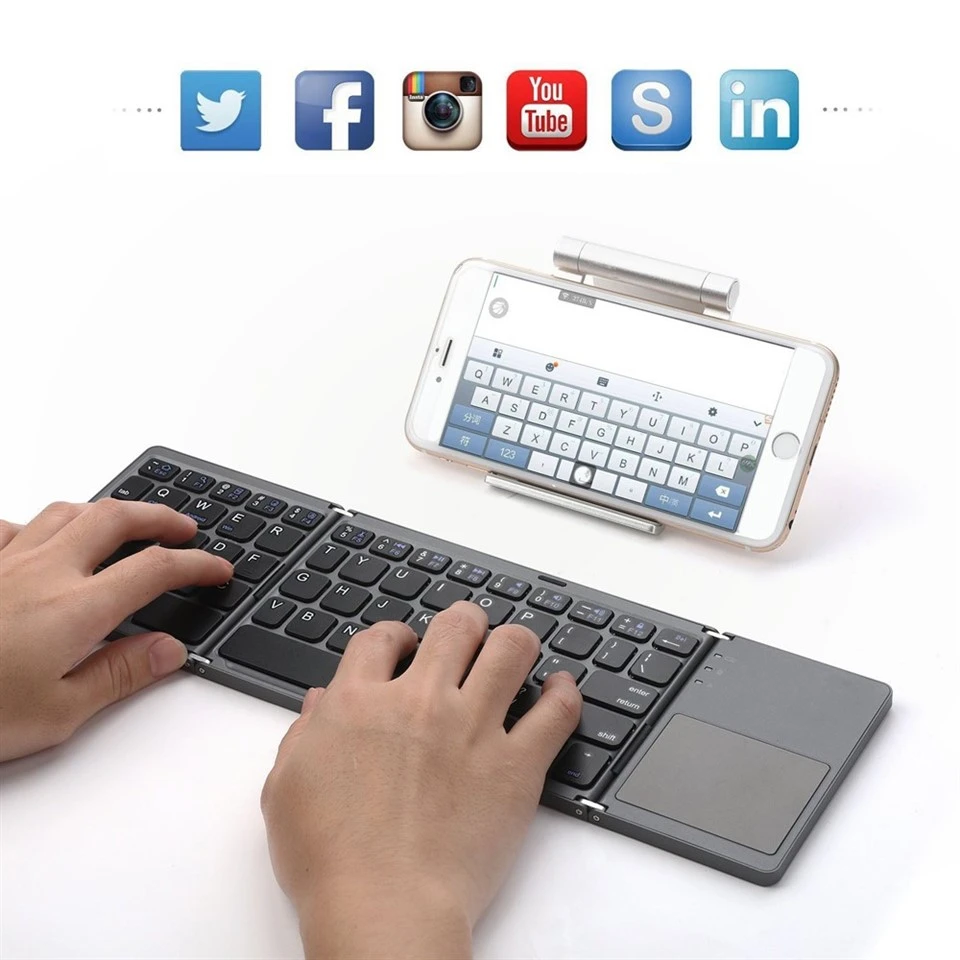
If you're always on the go, our Portable Folding Bluetooth Keyboard is a great option. It's easy to carry around in your bag and can be quickly connected to your device via Bluetooth. You can use it with your tablet or laptop and still have a comfortable typing experience, no matter where you are.
For those who want a bit more functionality, the ABS Bluetooth Keyboard with Touchpad is a fantastic choice. The built - in touchpad allows you to navigate your screen without having to reach for a separate mouse, making it more convenient when you're using different input methods and need to switch between typing and navigating.
Troubleshooting Common Issues
Sometimes, you might run into problems when changing the keyboard input method. One common issue is that the input method doesn't work as expected. This could be due to outdated drivers or software. Make sure your operating system and keyboard drivers are up - to - date. You can usually do this through the system settings or the manufacturer's website.
Another issue could be that the shortcut to switch input methods doesn't work. In this case, you can try resetting the shortcut in the system settings. If the problem persists, it might be a conflict with other software on your computer. Try closing any unnecessary programs and see if that resolves the issue.
Conclusion
Changing the keyboard input method can open up a whole new world of possibilities, whether it's for learning a new language, improving productivity, or just having more fun with your typing. And with the right keyboard from our range, you can make the most of these different input methods.
If you're interested in upgrading your keyboard or have any questions about which keyboard would be best for your input method needs, don't hesitate to reach out. We're here to help you find the perfect keyboard for your requirements. Whether you're a student, a professional, or a casual user, we've got a keyboard that will suit you.
References
- Windows Help and Support
- macOS Documentation
- Linux Community Forums


